Create a QR Code and have it displayed on the survey 'Welcome Page' which allows users to scan the QR code with their mobile phone and complete the survey without touching the screen.
Step 1: Create QR Code
- Survey Kiosk > QR Codes > Create
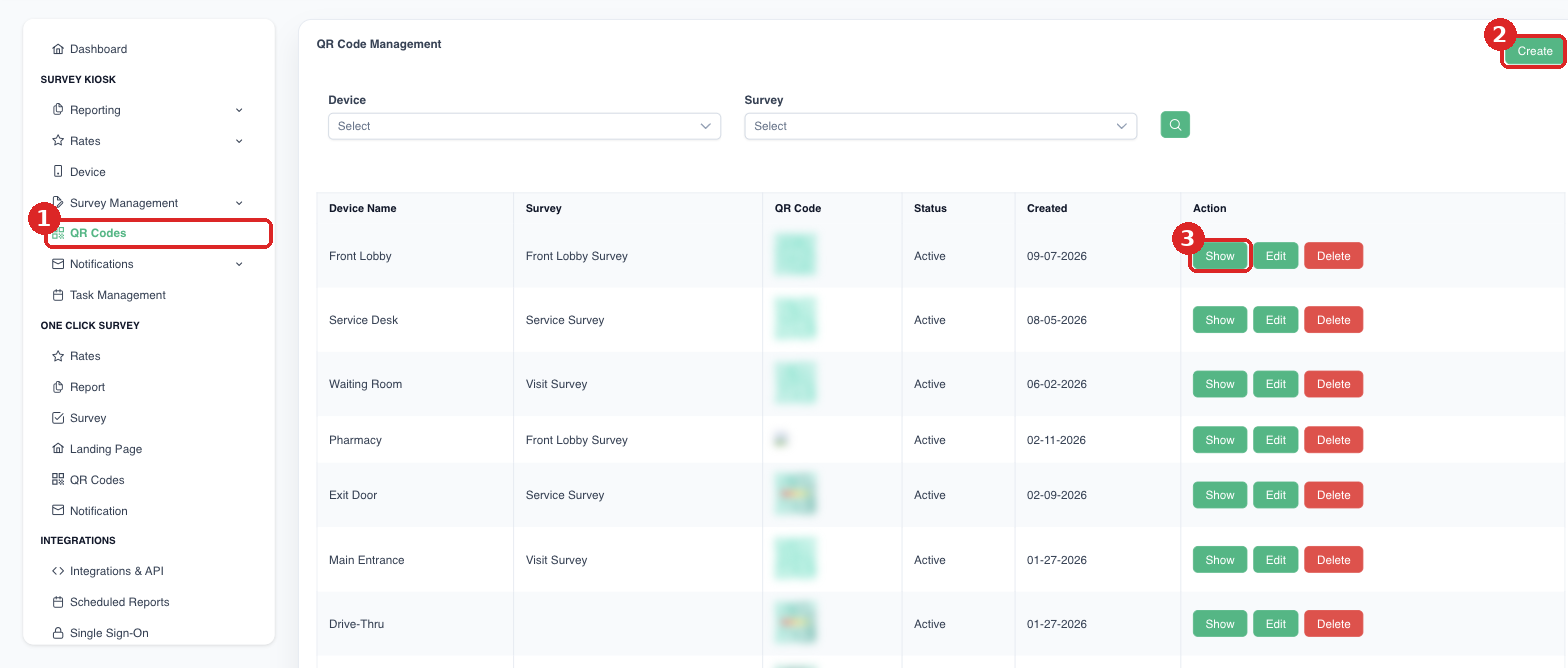
(1) Survey Kiosk > QR Codes. (2) Click Create to add a QR code for a device and survey. (3) Click Show to view or print it.
Step 2: Enable Welcome Page
- Survey Kiosk > Device > Device Settings > turn on Welcome Page (How to Enable Welcome Page)
Step 3: Launch Survey on App
- Once you launch the survey there will be a QR Code in the lower left part of the screen that users can scan

This QR Code can also be printed and used within signage posted on the Kiosk.Requirement:
iPad App Version 7.0+