Scheduled Reports email an Excel export of your kiosk survey results to anyone you choose, automatically, on a recurring schedule.
Create a scheduled report
- Log in at app.surveystance.com.
- In the left sidebar under Integrations, click Scheduled Reports.
- Click New Report.
- Select the Survey. Only active kiosk surveys appear in the list.
- Enter the Recipient email.
- Choose the Date range the report should cover.
- Choose the Frequency (for example, Daily) and make sure Active is on.
- Click Save export. To get a copy right away, click Send now.
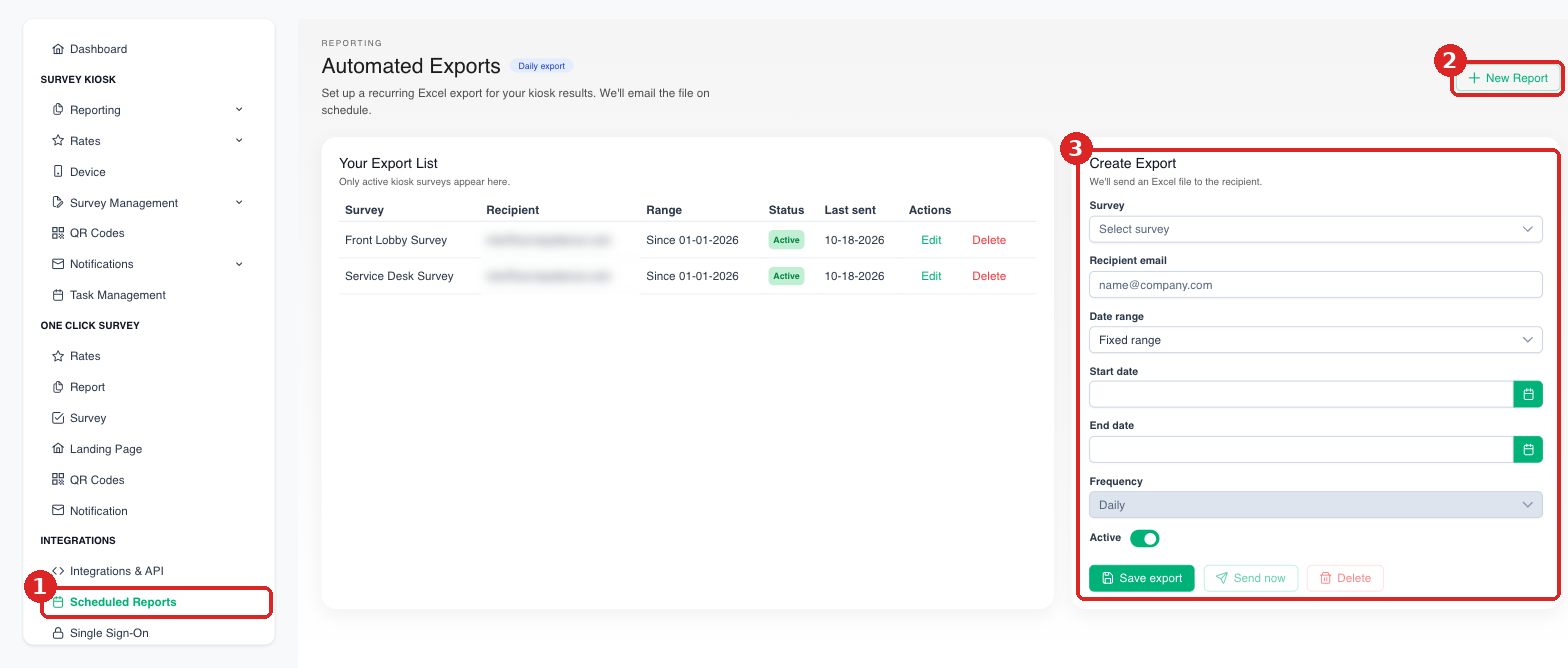
(1) Integrations > Scheduled Reports. (2) Click New Report. (3) Fill in the Create Export form and click Save export.
Manage your exports
The Your Export List table shows each report's survey, recipient, date range, status and when it was last sent. Use Edit to change a report or Delete to stop it.
Need a one-time export instead? See Rates: Exporting Feedback Rates to Excel.