All iPad kiosk settings are now set per device in the SurveyStance app.
- Log in at app.surveystance.com.
- Go to Survey Kiosk > Device.
- Click Device Settings next to the device you want to change.
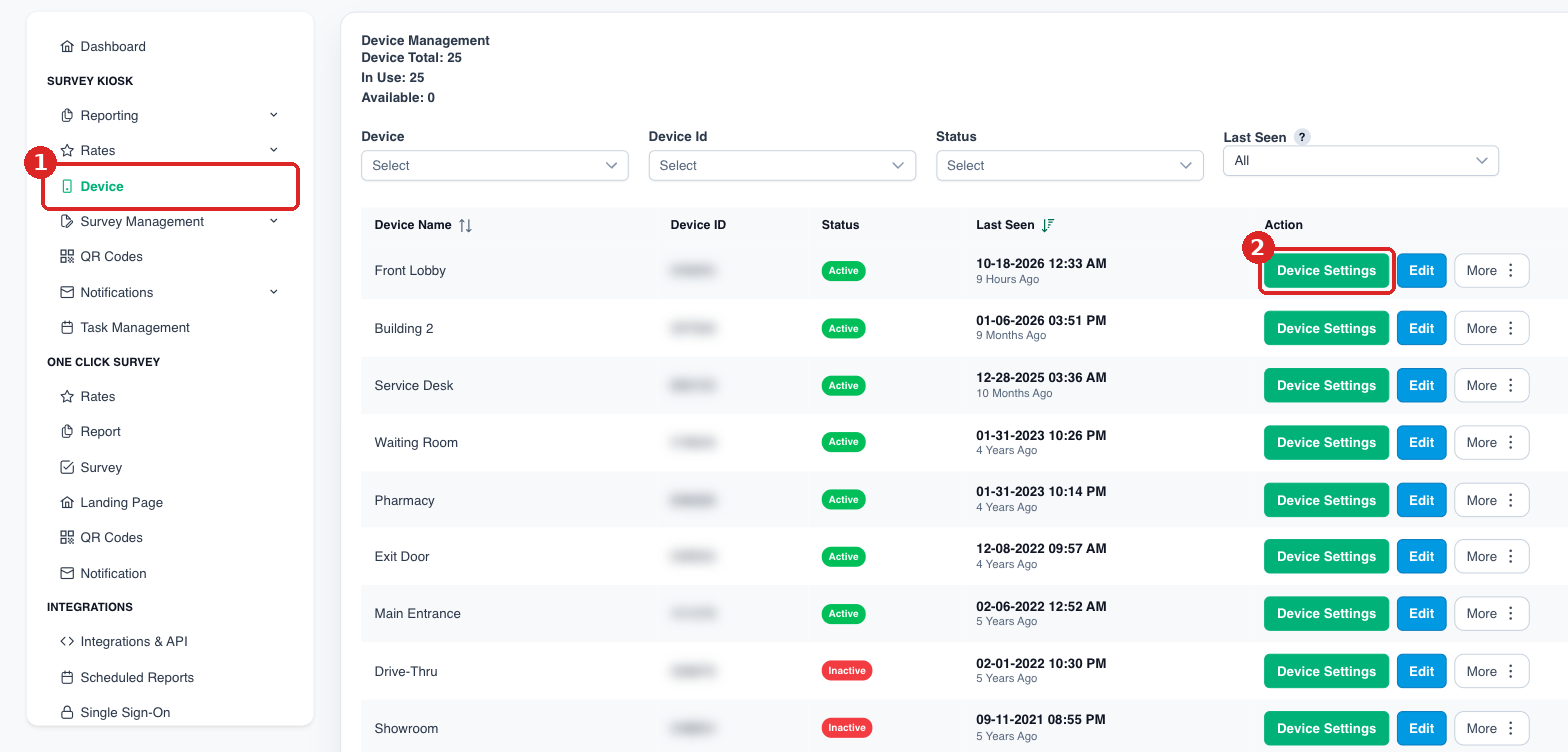
(1) Survey Kiosk > Device. (2) Click Device Settings next to the device.
Available settings:
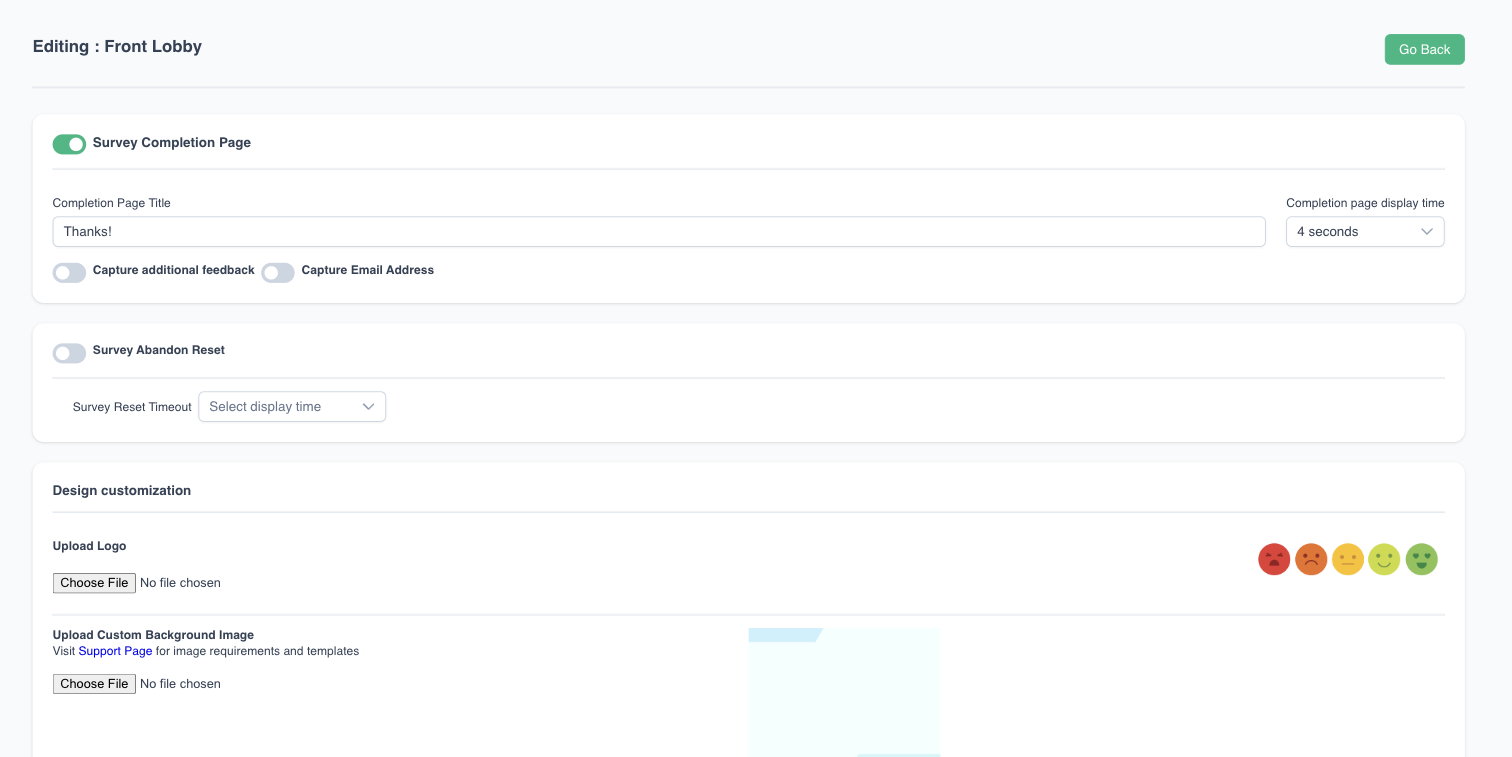
- Survey Completion Page: completion page title, how long it displays, and options to capture additional feedback or an email address.
- Survey Abandon Reset: how long before an unfinished survey resets.
- Design customization: upload your logo and a custom background image.
- Welcome Page
- Enable Multi Language Surveys
- Enable User Photo Capture
- Enable Survey Sleep Mode
- Auto Launch Last Survey If App Restarts
- Popup Invitation
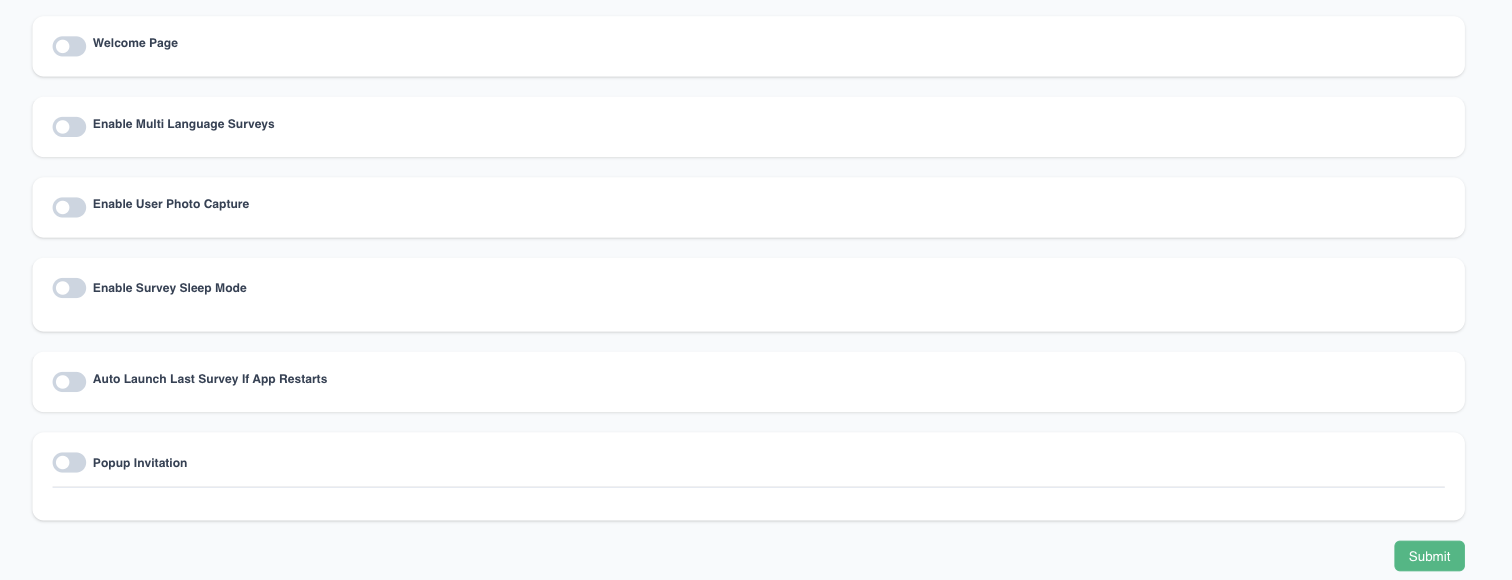
Click Submit to save.
Add a new device
On Survey Kiosk > Device, add a device, give it a friendly name, and use the generated Device ID to connect your iPad. You can optionally add tags and set the device's timezone. See Launching Your Survey On Your iPad Device.