Need to remove test responses, duplicates, or other rates you don't want in your reports? You can delete rates directly from the SurveyStance portal for both Survey Kiosk and OneClick Survey. The steps are almost the same for both.
Important: Deleting rates is permanent and can't be undone. Deleted rates are removed from your reports, dashboards and exports. If you might need the data later, click the Download button to export your rates to Excel first.
Delete Survey Kiosk rates
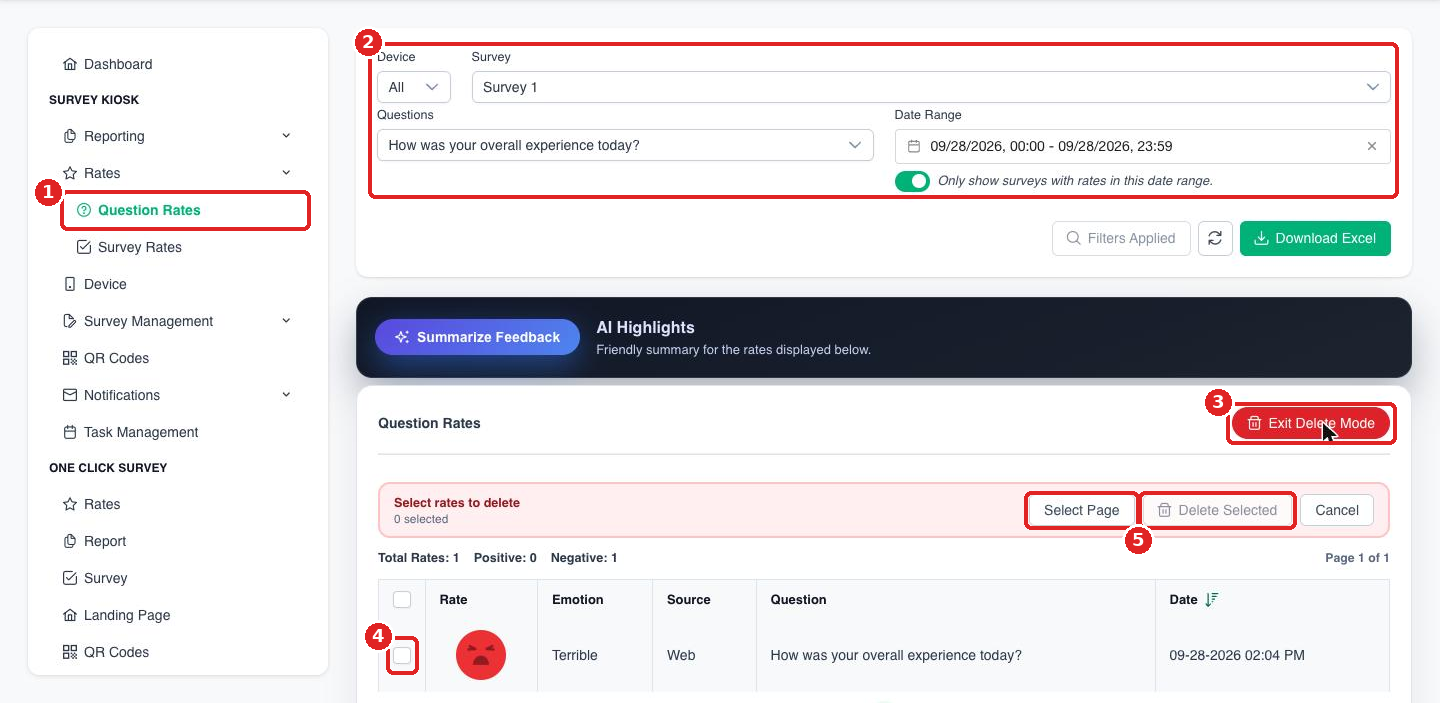
Step 1: Log in to app.surveystance.com and go to Survey Kiosk > Rates > Question Rates.
Step 2: Use the filters (Device, Survey, Questions and Date Range) to find the rates you want to remove.
Step 3: Click the red Delete Rates button above the table. This turns on delete mode, and the button changes to Exit Delete Mode.
Step 4: Check the box next to each rate you want to delete, or click Select Page to select every rate on the current page.
Step 5: Click Delete Selected.
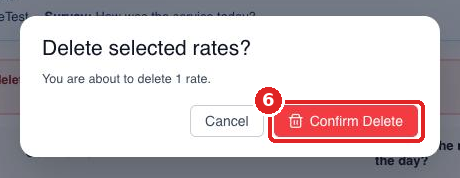
Step 6: In the pop-up, review how many rates will be deleted and click Confirm Delete. You'll see a message confirming the rates were deleted.
Delete OneClick Survey rates
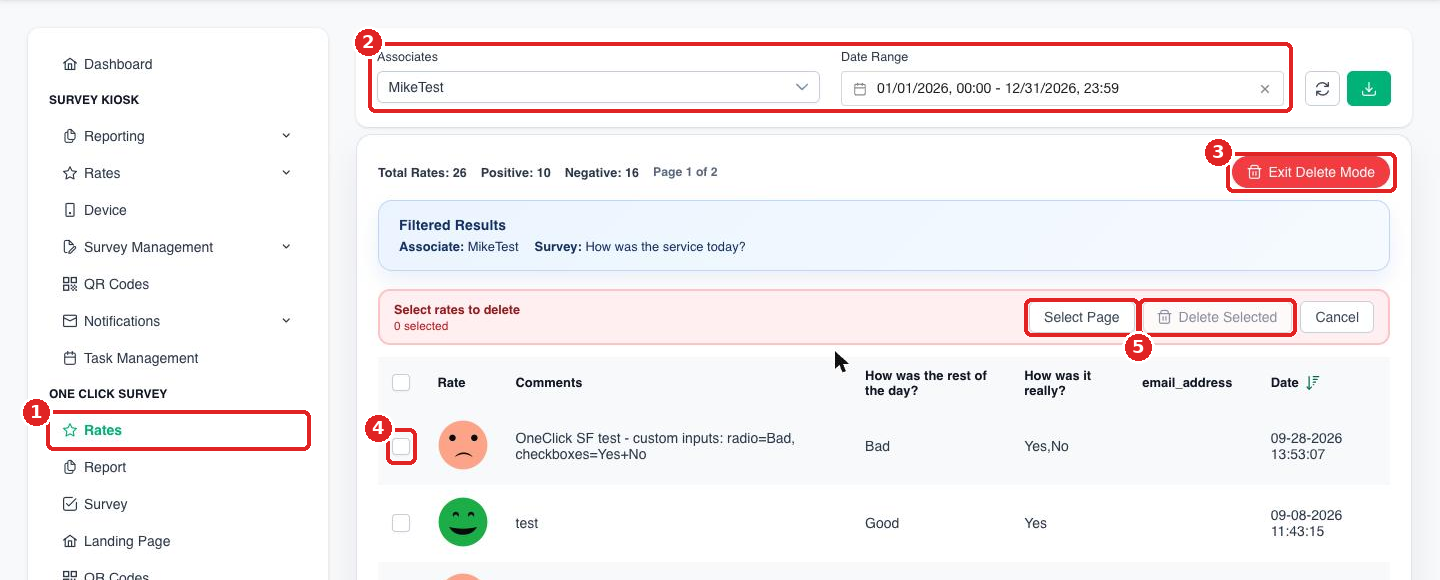
Step 1: Go to One Click Survey > Rates.
Step 2: Use the Associates and Date Range filters to find the rates you want to remove.
Step 3: Click the red Delete Rates button.
Step 4: Check the box next to each rate you want to delete, or click Select Page.
Step 5: Click Delete Selected, then click Confirm Delete in the pop-up.
Tips
- Changed your mind? Click Cancel or Exit Delete Mode to leave delete mode without deleting anything.
- Select Page only selects rates on the page you're viewing. If your results span several pages, repeat the steps on each page.
- Narrow your filters first (for example, a single day or a single device) so you only see the rates you want to remove.