In Survey Kiosk
- Questions: Rearrange Question Order
- Surveys: Creating a Survey & Add Questions to the Survey
- How to Create Survey
- Questions: How to Create Conditional Questions
- iPad App Settings: Add Question Notice Text
- Updating a Live Survey from Portal to iPad Kiosk (in Real Time)
- Sample Questions - Survey Kiosk
- iPad App Settings: Overview & Summary Page
- iPad App Settings: Survey Completion Page
- iPad App Settings: Upload Custom Background Image
- iPad App Settings: Survey Abandon Reset
- iPad App Settings: Upload Logo
- iPad App Settings: Welcome Screen
- iPad App Settings: Capture Photo
- iPad App Settings: Survey Sleep Mode
- iPad App Settings: Auto Launch Survey
- iPad App Settings: QR Code
- Device Settings: Customize Your iPad Kiosk
- QR Code Functionality - Feedback Kiosk Survey & One Click Feedback/ Email Signature
- Delete QR Codes - Kiosk Surveys
- Automatic Language Translations for Feedback Kiosk Surveys
- Not a SS iPad? How to Adjust Settings for Kiosk Mode
- Exiting Kiosk Survey Mode
- Guided Access Mode - Setup
- iPad Kiosk - Requirements
- Launching Your Survey On Your iPad Device
- Device Offline Alerts
- Task Management: Follow Up on Feedback
- Task Management Notifications - Feedback Kiosk Survey
- Average Score Calculation
- Total Rates Definition
- Scheduled Reports: Automatic Excel Exports by Email
- AI Highlights and AI Question Review
- Rates: Exporting Feedback Rates to Excel
- Compare Device Data - Feedback Kiosk Survey
- How to Delete Rates from the Portal (Survey Kiosk & OneClick)
Exiting Kiosk Survey Mode
Updated 1 min read
Kiosk mode keeps survey participants locked into your survey so they can't leave the SurveyStance app. When you need to exit the survey, switch to a different survey, or get to the app settings, follow the steps below.
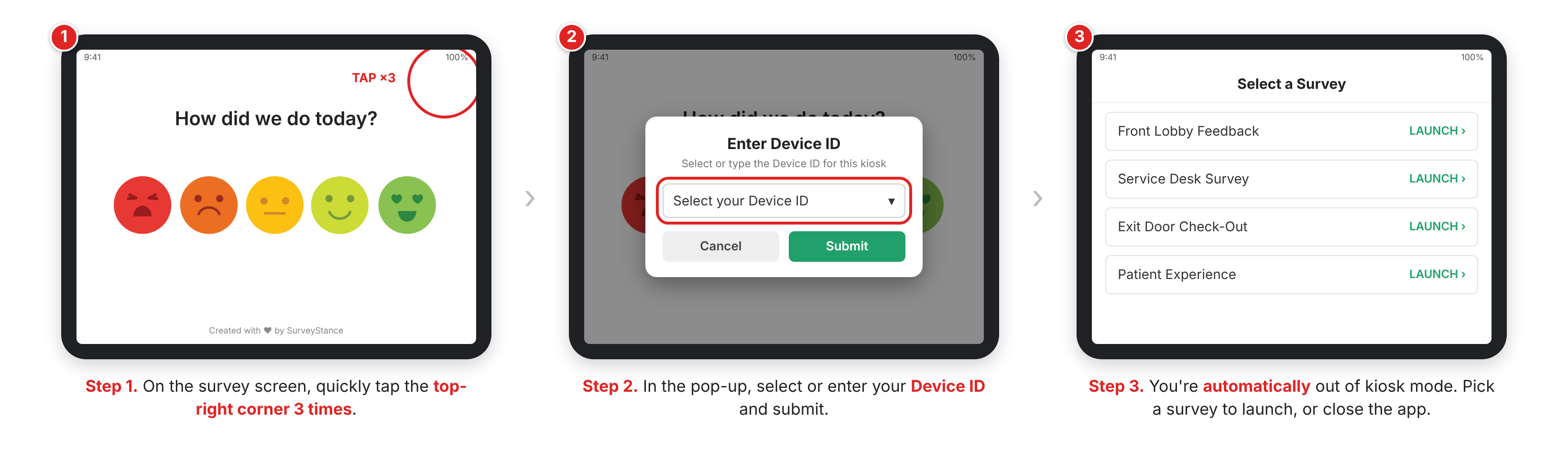
Step 1: Tap the top-right corner 3 times. While the survey is showing, quickly tap the top-right corner of the iPad screen three times in a row.
Step 2: Enter your Device ID. A pop-up appears over the survey. Select your Device ID from the dropdown (or type it in) and submit. This is the same 6-digit Device ID you used to log in.
Step 3: You're out of kiosk mode. Once your Device ID is accepted, the app automatically exits kiosk mode and takes you to your list of surveys. From there you can launch a different survey or close the app.
 #
Where do I find my Device ID?#
Log in to the SurveyStance app at app.surveystance.com and go to Survey KioskDevice. Your 6-digit code is listed in the Device ID column next to each device name.
Tips#
- The three taps need to be quick. If nothing happens, try again a little faster, right in the corner.
Need to launch a survey for the first time? See Launching Your Survey On Your iPad Device.
Thanks for letting us know.