In Survey Kiosk
Surveys & Questions
- Questions: Rearrange Question Order
- Surveys: Creating a Survey & Add Questions to the Survey
- How to Create Survey
- Questions: How to Create Conditional Questions
- iPad App Settings: Add Question Notice Text
- Updating a Live Survey from Portal to iPad Kiosk (in Real Time)
- Sample Questions - Survey Kiosk
Devices & iPad Settings
- iPad App Settings: Overview & Summary Page
- iPad App Settings: Survey Completion Page
- iPad App Settings: Upload Custom Background Image
- iPad App Settings: Survey Abandon Reset
- iPad App Settings: Upload Logo
- iPad App Settings: Welcome Screen
- iPad App Settings: Capture Photo
- iPad App Settings: Survey Sleep Mode
- iPad App Settings: Auto Launch Survey
- iPad App Settings: QR Code
- Device Settings: Customize Your iPad Kiosk
- QR Code Functionality - Feedback Kiosk Survey & One Click Feedback/ Email Signature
- Delete QR Codes - Kiosk Surveys
- Automatic Language Translations for Feedback Kiosk Surveys
iPad Setup
- Not a SS iPad? How to Adjust Settings for Kiosk Mode
- Exiting Kiosk Survey Mode
- Guided Access Mode - Setup
- iPad Kiosk - Requirements
- Launching Your Survey On Your iPad Device
Notifications & Tasks
- Device Offline Alerts
- Task Management: Follow Up on Feedback
- Task Management Notifications - Feedback Kiosk Survey
Reporting & Exports
- Average Score Calculation
- Total Rates Definition
- Scheduled Reports: Automatic Excel Exports by Email
- AI Highlights and AI Question Review
- Rates: Exporting Feedback Rates to Excel
- Compare Device Data - Feedback Kiosk Survey
- How to Delete Rates from the Portal (Survey Kiosk & OneClick)
Troubleshooting
iPad App Settings: Add Question Notice Text
Updated 1 min read
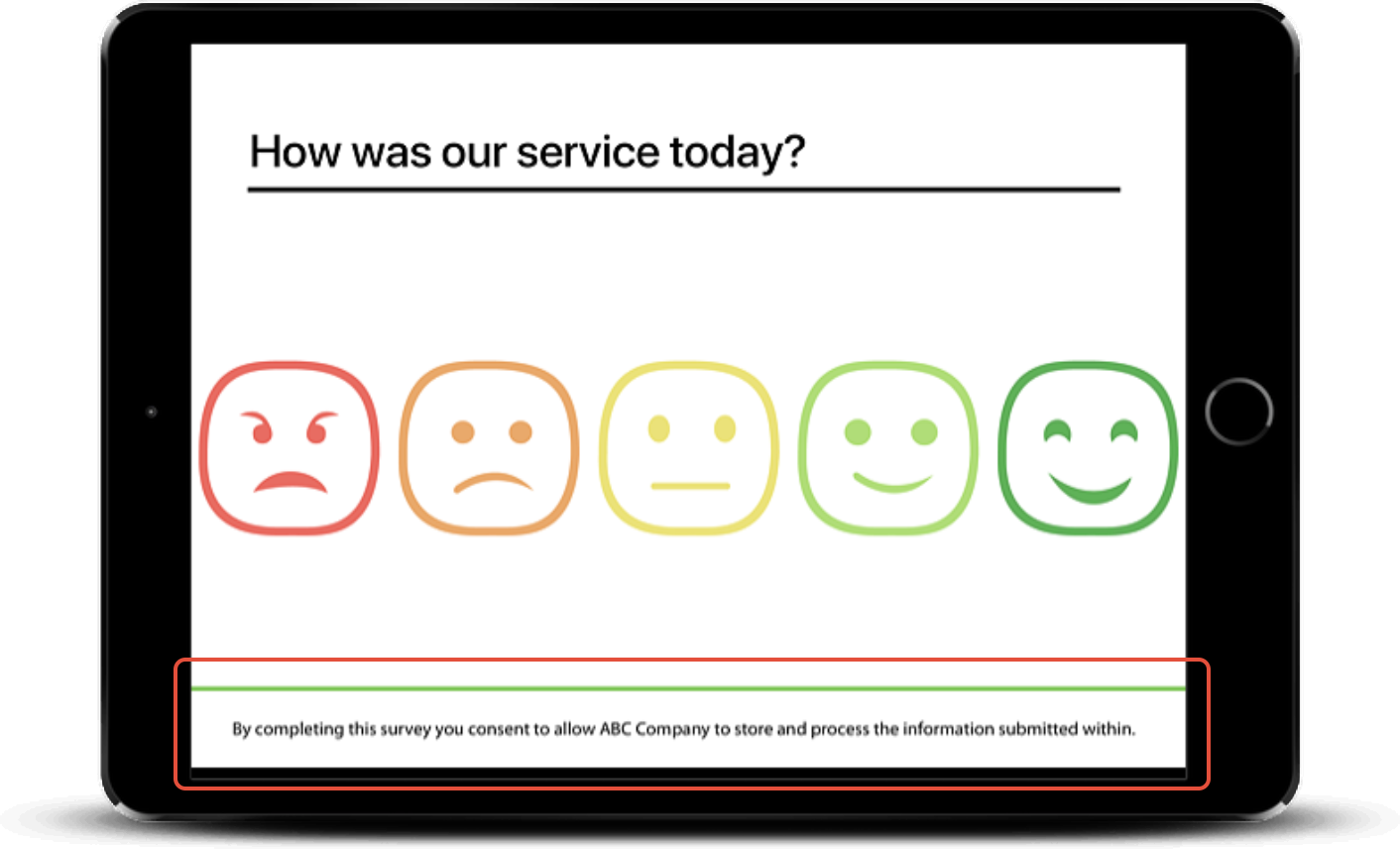
Add custom text to the footer of a survey question displayed within the app.
Step 1: Add Custom Text to Question#
- Survey Kiosk > Survey Management > Questions > Create Question (or Edit) > Appearance > Question notice
When creating or editing a question, open Appearance under Question settings and enter your text in Question notice.
Step 2: Launch Survey on App#
- The text will appear within the bottom footer for that specific question within the app
 #
This QR Code can also be printed and used within signage posted on the Kiosk.
Requirement:
iPad App Version 7.0+
Was this article helpful?
Thanks for letting us know.
Still need help?Send us a message and we'll get back to you.
Contact us