Only necessary if you're using your own iPad. SurveyStance iPads already have this built into the app.
Guided Access is an iPad feature that locks the iPad to a single app. Turning it on keeps people from swiping or pressing a button to leave the SurveyStance app while your iPad is in kiosk mode capturing feedback.
Part 1: Turn on Guided Access (one-time setup)
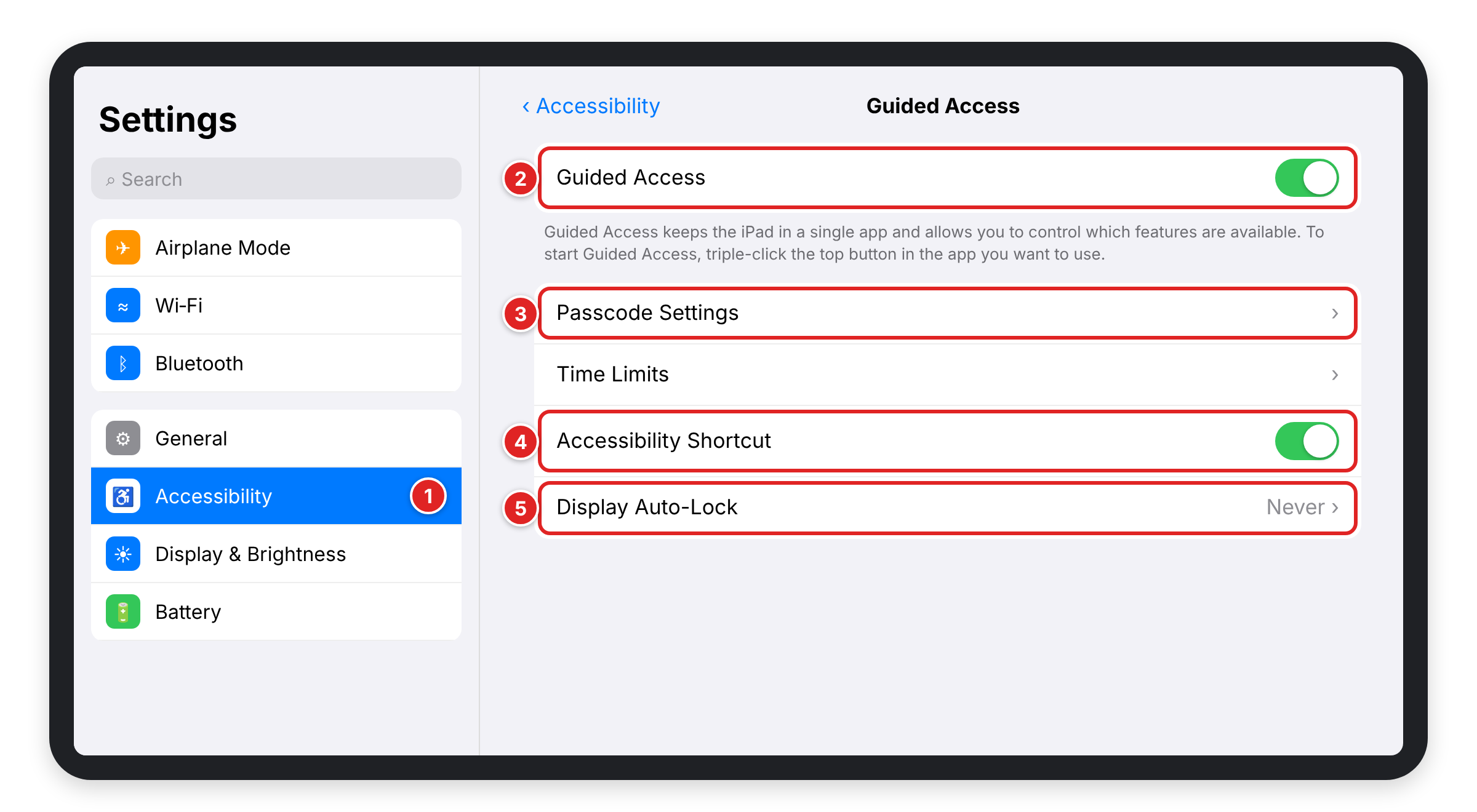
Step 1: On the iPad, open Settings and tap Accessibility.
Step 2: Tap Guided Access and turn it on.
Step 3: Tap Passcode Settings > Set Guided Access Passcode and choose a passcode. Share it only with staff who need to exit the app. You can also turn on Touch ID or Face ID to end a session.
Step 4: Turn on Accessibility Shortcut.
Step 5: Tap Display Auto-Lock and choose Never so the screen stays on while the iPad is in Guided Access. Keep the iPad plugged in so it stays charged.
Part 2: Start Guided Access on your survey
Step 1: Open the SurveyStance app and launch your survey so it's showing in kiosk mode.
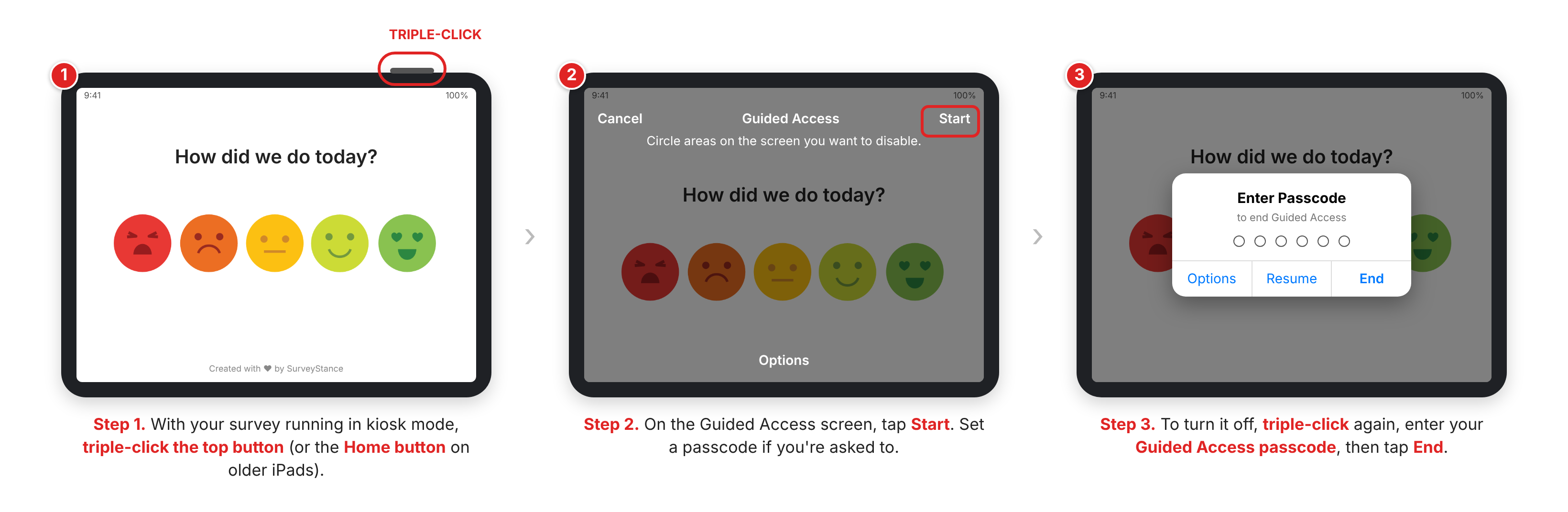
Step 2: Triple-click the top button on the iPad. On older iPads with a Home button, triple-click the Home button. If a menu appears, tap Guided Access.
Step 3: Tap Start in the top-right corner. If you haven't set a passcode yet, you'll be asked to create one.
Turning Guided Access off
Triple-click the top button (or Home button) again, enter your Guided Access passcode, then tap End. You can then exit kiosk mode in the SurveyStance app as usual. See Exiting Kiosk Survey Mode.
Video walkthrough
This video was recorded on an older iOS version, so some menus look different (Accessibility used to be under Settings > General). The steps above match current iPadOS.