If the SurveyStance app freezes, stops responding to taps, or isn't showing your survey correctly, closing the app and opening it again usually fixes it.
Before you start: If you're using Guided Access, end it first. Triple-click the top button (or Home button), enter your Guided Access passcode, then tap End.
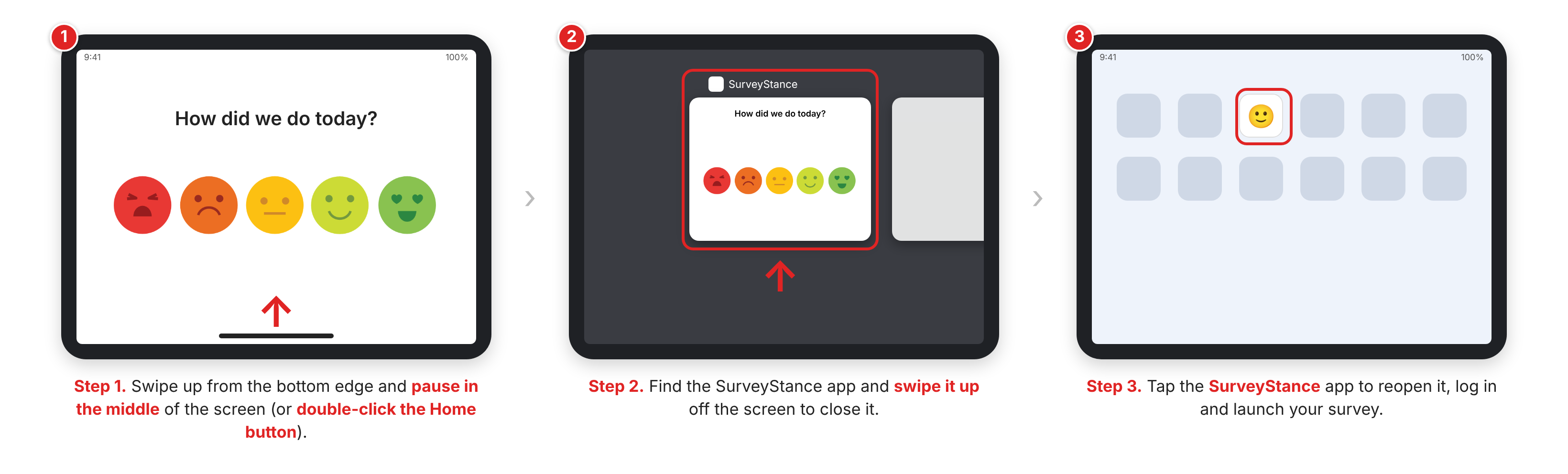
Step 1: Open the App Switcher. On an iPad without a Home button, swipe up from the bottom edge of the screen and pause in the middle. On an iPad with a Home button, double-click the Home button.
Step 2: Close the SurveyStance app. Swipe left or right to find the SurveyStance app, then swipe it up and off the screen.
Step 3: Reopen the app. Tap the SurveyStance app on the Home Screen, log in if asked, and launch your survey.
If you're using your own iPad, turn Guided Access back on afterward. See Guided Access Mode - Setup.
Still stuck? If the whole iPad is frozen, see iPad is Unresponsive or not Performing as Expected to restart it. If the app still isn't working, check the WiFi connection or email smile@surveystance.com.