SurveyStance Outlook Add‑In (Beta)
Capture the recipient’s email address when they click an emoji in your Email Signature Survey, so each rating is linked to the right person in your SurveyStance dashboard.
How it works
The add‑in replaces the {user_email} placeholder inside your survey URL with the actual recipient address from the To: field. When the recipient clicks an emoji, SurveyStance can associate that response with the correct email.
Set up your survey in SurveyStance
- In the SurveyStance dashboard, go to One Click Survey.
- Click Landing Page and edit the landing page for the survey you want to use.
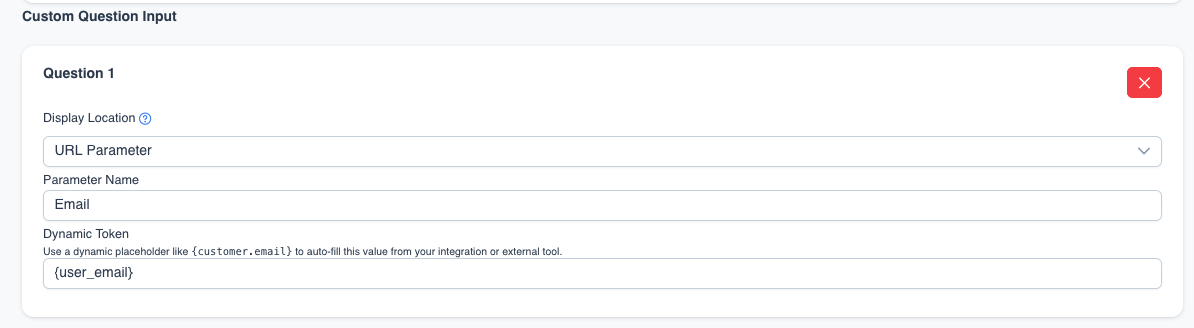
- Scroll to the bottom and click Add another field to add a custom question.
- Set Display location to URL parameter.
- Set Parameter name to email.
- Set the Dynamic token to {user_email} and save.
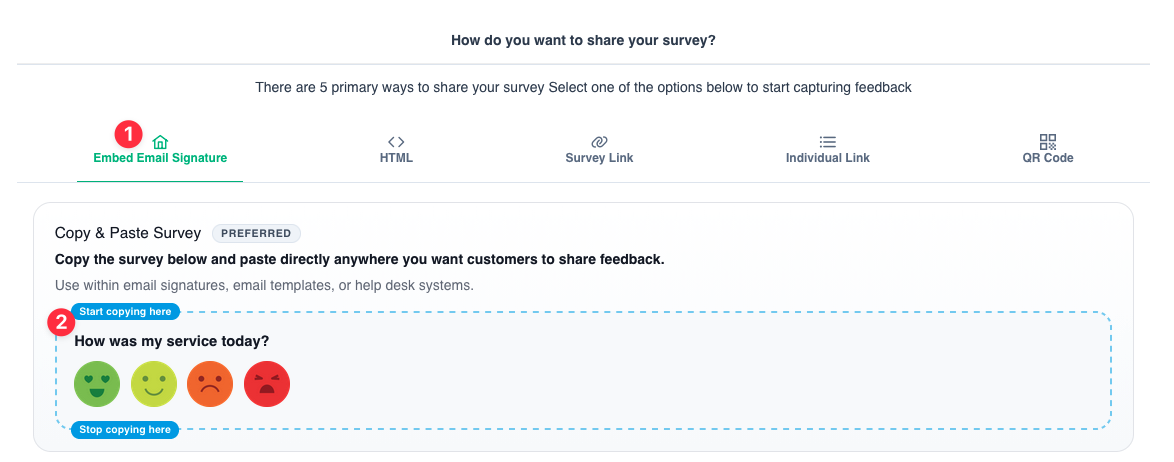
- Click Survey in the left nav, then click Survey link.
- Copy the survey HTML and paste it into your email signature.
Install the Add‑In
- Download the manifest file: https://outlook.surveystance.com/outlook/manifest.xml
- In Outlook, go to My add‑ins.
- Scroll to Custom Add‑ins and choose Add a Custom Add‑in → Add from File.
- Select the downloaded manifest.xml and click Install.
Use the Add‑In
- Paste your Email Signature Survey into your email signature.
- Confirm the survey URL includes the {user_email} placeholder. Example:
...?7896={user_email} - Compose a new email and add a recipient in the To field.
- The add‑in will automatically replace {user_email} with the actual recipient address.
Testing
- Start a new email and add a recipient.
- Click an emoji in your signature survey.
- In the opened URL, confirm {user_email} has been replaced with the recipient’s email.
Need Help?
If you need any support getting setup, feel free to reach out and schedule some time with our team who can help walk you through this setup.